Control Panel of the Product
1 | Fast Freeze Button | 2 | Refrigerator Compartment Temperature Setting Button |
3 | Error Status Indicator | 4 | Freezer Compartment Temperature Setting Button |
5 | *Wireless Button |
Read the “Safety Instructions” first!
The audio and visual functions on the instrument panel help you use the product.
*Optional The functions shown are optional; the functions on your product's instrument panel may differ in shape and location.
1. Quick Freeze Button 
When the quick freeze button is pressed, the quick freeze icon lights up and the quick freeze function is activated. The freezer compartment temperature is set to -27°C. To cancel the function, the button must be pressed again. The quick freeze function automatically cancels itself after a certain time. If you want to freeze a large quantity of fresh food, press the quick freeze button before placing the food in the freezer compartment.
2. Refrigerator Compartment Temperature Adjustment Button 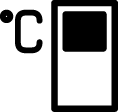
The temperature for the refrigerator compartment is adjusted. When the button is pressed, the refrigerator compartment temperature can be set to 8, 6, 4, or 2°C.
3. Error Status Indicator 
This indicator will activate if your appliance is unable to cool sufficiently or if a sensor error occurs. The freezer and refrigerator temperature indicators will flash in specific combinations. This informs the service department about the error. The exclamation mark may briefly illuminate if you load hot food into the freezer compartment or leave the door open for an extended period. This is not a malfunction; the warning will disappear once the food has cooled or a button has been pressed.
4. Freezer Compartment Temperature Adjustment Button 
The temperature for the freezer compartment is adjusted. By pressing the button, the freezer compartment temperature can be set to -18, -20, -22, or -24 °C.
5. * Wireless Button 
This button is used to connect your product wirelessly via the HomeWhiz mobile application. Pressing and holding the button (for 3 seconds) will cause the wireless connection icon on the screen/display to blink slowly (at 0.5-second intervals). This initiates the initial setup of the home network with the product. Once a wireless connection is established, the wireless connection icon will remain lit. After the initial setup is complete, you can activate/deactivate the connection by pressing this button again. Until a connection is established, the wireless connection icon will blink rapidly (at 0.2-second intervals). When the connection is active, the wireless network icon will remain lit. If a connection cannot be established for an extended period, check your connection settings and refer to the 'Troubleshooting' section in the user manual. The HomeWhiz application must be used for wireless connection. Setup steps are explained via the application during installation. You can access the application by scanning the QR code on the HomeWhiz label on the product. The application is available on the App Store for iOS devices and the Play Store for Android devices. For detailed information... https://www.homewhiz.com/address Visit.